
Group Chat
The feature of group chats in our application allows people to come together for joint discussions and idea exchange in one space. This is a convenient way to stay connected with the team, share information, and instantly address issues, ensuring effective real-time interaction.
Roles in a Group Chat
The capabilities of users in the chat will differ based on roles, which can be assigned by a user with the Owner role. There can be three types of roles in a group chat: chat owner, administrator, and regular participant. Each role has its own rights and abilities.
Participant of a group chat without a role - has the ability to send messages in the chat without restrictions, can view information about the chat and its participants, plan events with chat participants, as well as disable notifications from the group chat for themselves and leave the group chat;
Administrator - has all the capabilities of a participant without a role, but additionally can remove users from the group chat;
Owner - has all the capabilities listed above for other roles, but additionally can delete messages sent by other users, delete the group chat for all participants of the group chat, and can assign and revoke administrator rights for other users.
| Abilities | Owner | Administrator | Participant |
|---|---|---|---|
| Create chat | ✅ | ||
| Add participants | ✅ | ✅ | |
| Remove participants | ✅ | ✅ | |
| Assign roles | ✅ | ||
| Delete chats | ✅ | ✅ | |
| Clear dialogue | ✅ | ✅ |
How to assign roles in a chat:
Go to the group chat and click on the chat icon at the top of the screen to access chat information.
Click on the action menu button
⋮In the menu that appears, choose the action: "Assign as administrator" or "Assign as owner".
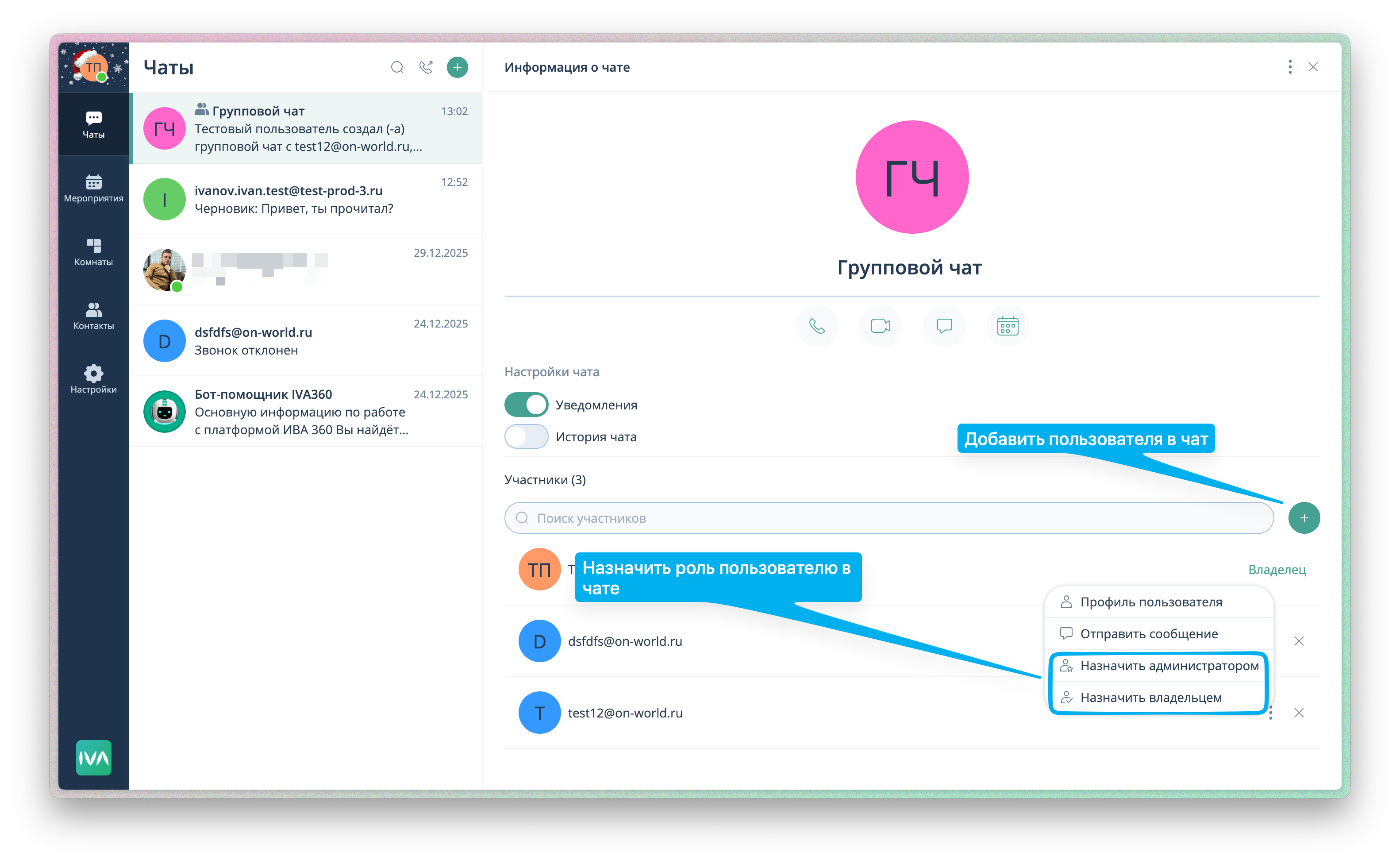
To remove a role, follow similar steps: call up the participant menu and select "Revoke administrator rights" or "Revoke owner rights".
How to create a group chat
In our application, it is possible to create a group chat in two ways:
METHOD 1: Creating a group chat from a personal chat.
STEP 1: Go to a personal chat with any interlocutor. Go to a personal chat with any interlocutor - click on the interlocutor's profile avatar - Click the "Create group chat" button. STEP 2: Choose the necessary interlocutors. From the list that appears, select the necessary interlocutors - check the boxes next to their names - click the green checkmark in the top right corner.
STEP 3: Chat created.
METHOD 2: Creating a group chat using the "New chat" function
STEP 1: Log in to your personal account on the IVA360 platform. To log in to your personal account, use the Login and Password for the IVA360 platform. Please note that the login and password for saas.vkurse.ru are the same as for lk.vkurse.ru (you need to use the login and password from lk.vkurse.ru). You can learn how to log in to the IVA360 platform in this article.
STEP 2: Go to the Chats tab in the left sidebar menu.
STEP 3: Click the green plus button to create a new chat.
STEP 4: Hold down the "Group chat" toggle on the right side of the screen.
STEP 5: After that, squares will appear on the right, by checking which you select the necessary participants.
STEP 6: When you have selected all participants, they will be displayed at the bottom of the screen as icons. By clicking on the cross in the corner of the icon, you can remove a participant. (see stamp 1)
STEP 7: When you have selected all participants, click "Create chat" at the bottom of the screen (see stamp 2). If you want to cancel the action, click "Cancel" (see stamp 3).
How to manage a group chat
In this article, you will learn about the functions of managing a group chat and the possibilities of interacting with participants on the IVA360 platform.
The interface of the group chat provides convenient tools for communication, file sharing, and dialogue management. Let's take a closer look at them:
- "Send message" button - when pressed, sends the entered message to chat participants.
- Emoji button - allows you to add emojis to your message.
- Message input field - necessary for writing a message.
- File attachment button - allows you to attach the necessary file or image.
- Audio call button - allows you to make an audio call.
- Video call button - allows you to make a video call.
- Three dots (action menu) - by clicking this button, you get access to the following functions:
- Turn off notifications in the chat - temporarily disables notifications from this chat.
- Leave the chat - leave the group chat.
- Show information about the group chat - opens chat details, including the list of participants.
- Plan an event - allows you to organize an event with chat participants.