
IVA 360 Messenger Features
The chat interface provides convenient tools for communication, file transfer, and dialogue management.
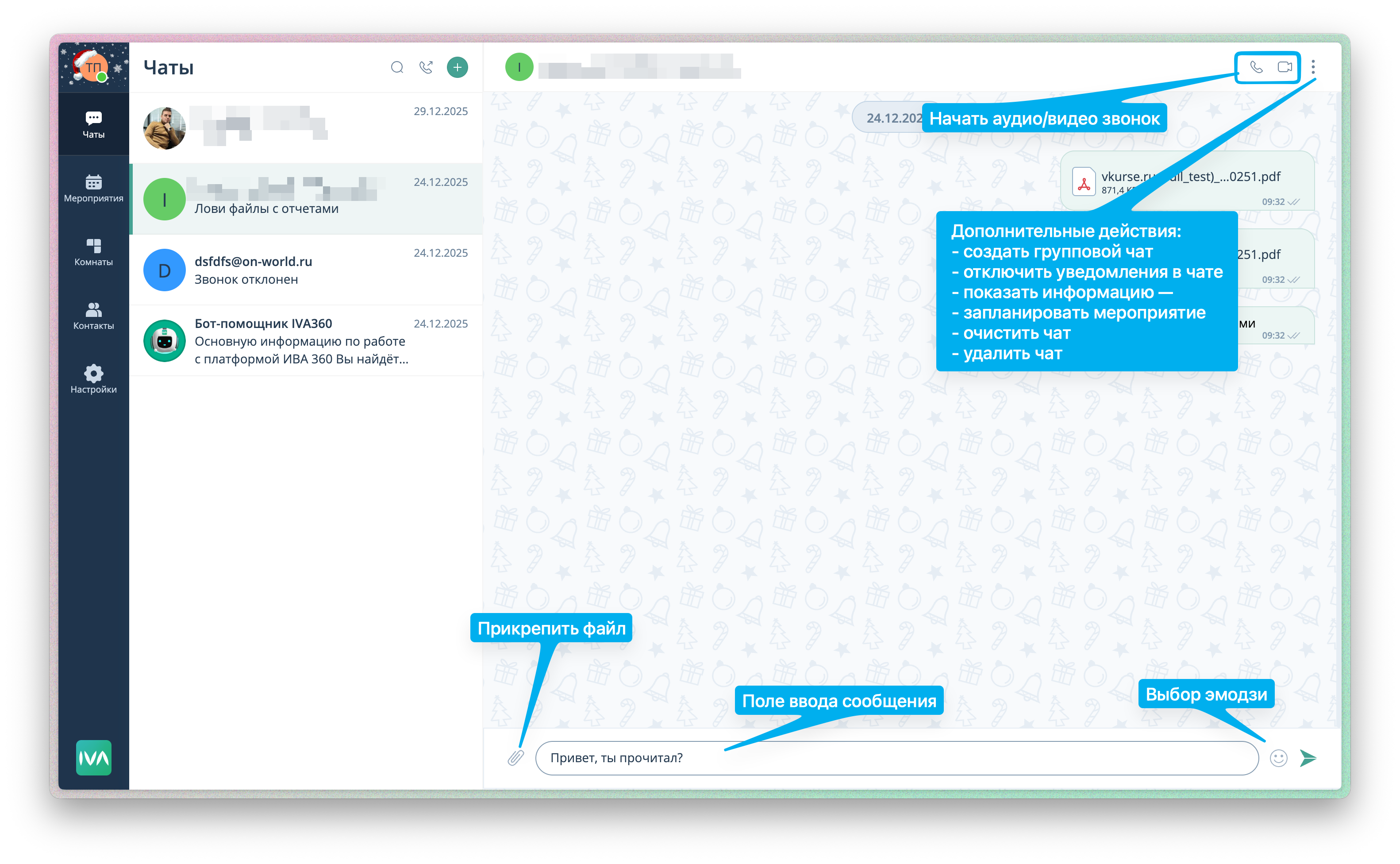
- "Send message" button - when pressed, sends the entered message to the interlocutor.
- Emoji button - allows you to add emojis to your message.
- Message input field - necessary for writing the text of the message.
- File attachment button - allows you to attach the necessary file or image.
- Audio call button - allows you to make an audio call.
- Video call button - allows you to make a video call.
- Three dots (action menu) - by clicking on this button, you get access to the following functions:
- Create a group chat with the person you are currently chatting with.
- Disable notifications in the chat - temporarily disables notifications from this chat.
- Show information - opens the interlocutor's profile for viewing.
- Schedule an event - allows you to organize an event with the interlocutor.
- Clear chat - clears the dialogue history for both users, but the dialogue itself remains in the "Chats" tab.
- Delete chat - completely deletes the chat, including the chat history, for both users. The chat will disappear from the "Chats" tab.
How to create a chat on the IVA 360 platform
You can create a chat through the application you are using, below is an example based on the WEB version.
STEP 1: Log in to the client application. This is possible:
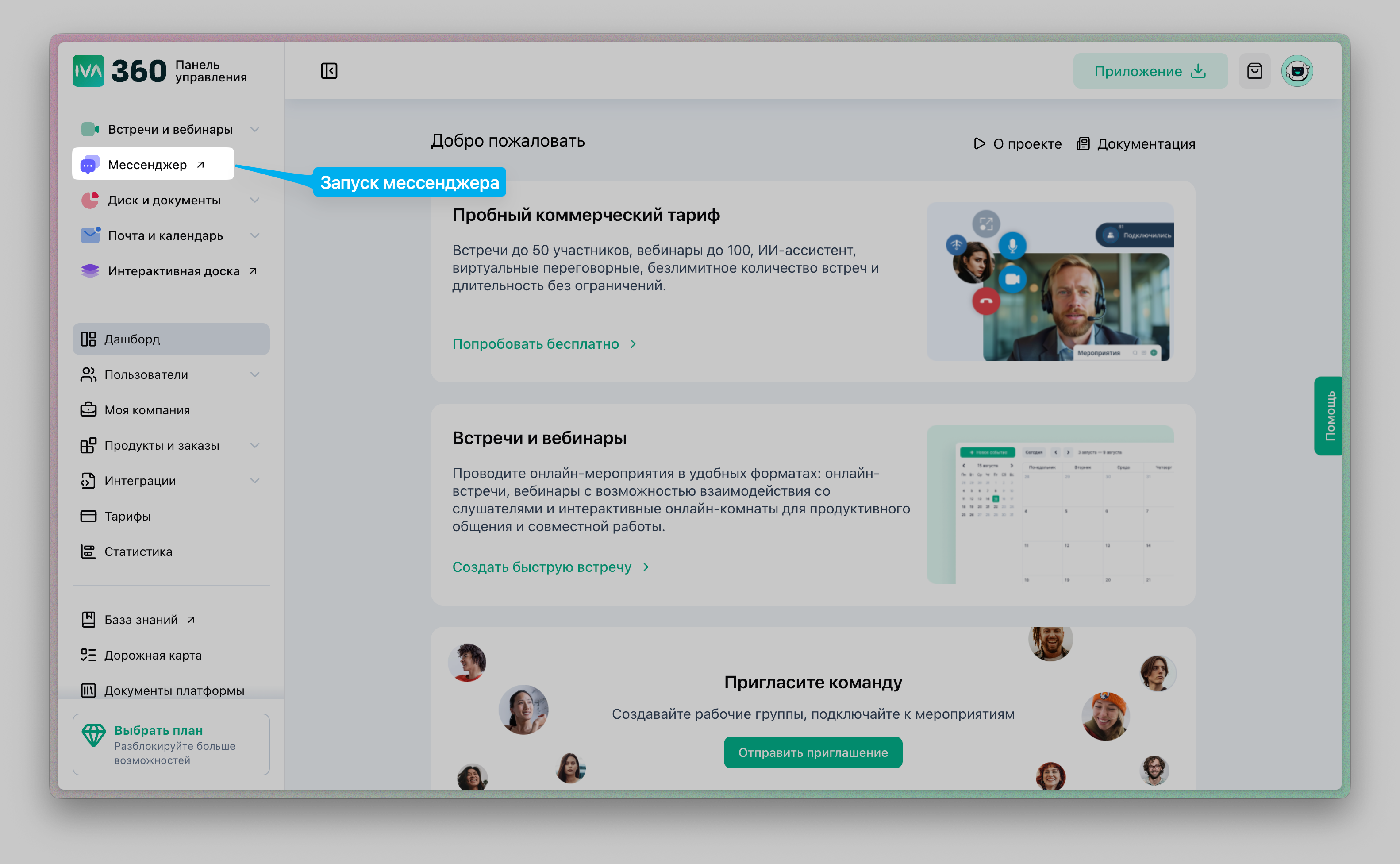
- through the personal account IVA 360. To log in to your personal account, use the Login and Password for the IVA 360 platform. And click on the Messenger section in the side menu.
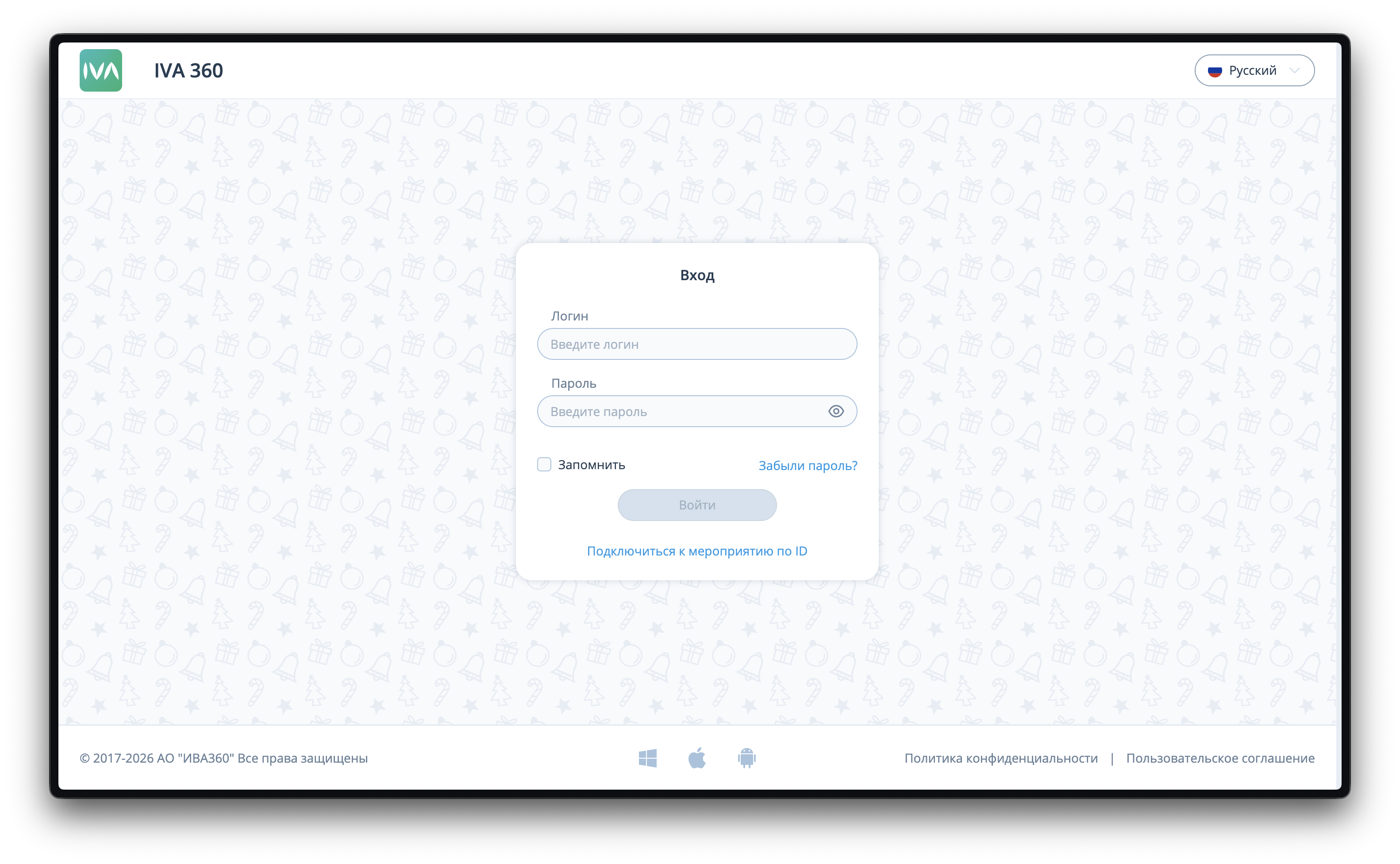
- through direct access to the WEB client meet.iva360.ru
Please note
The login details for meet.iva360.ru are the same as for the personal account https://lk.iva360.ru (you need to use the login and password from lk.iva360.ru). You can learn how to log in to the IVA 360 platform in this article.
STEP 2: Open the Chat tab in the left side menu.
STEP 3: Click on the green plus sign to create a new chat.
STEP 4: In the opened window, select the necessary contact by clicking on it with the mouse.
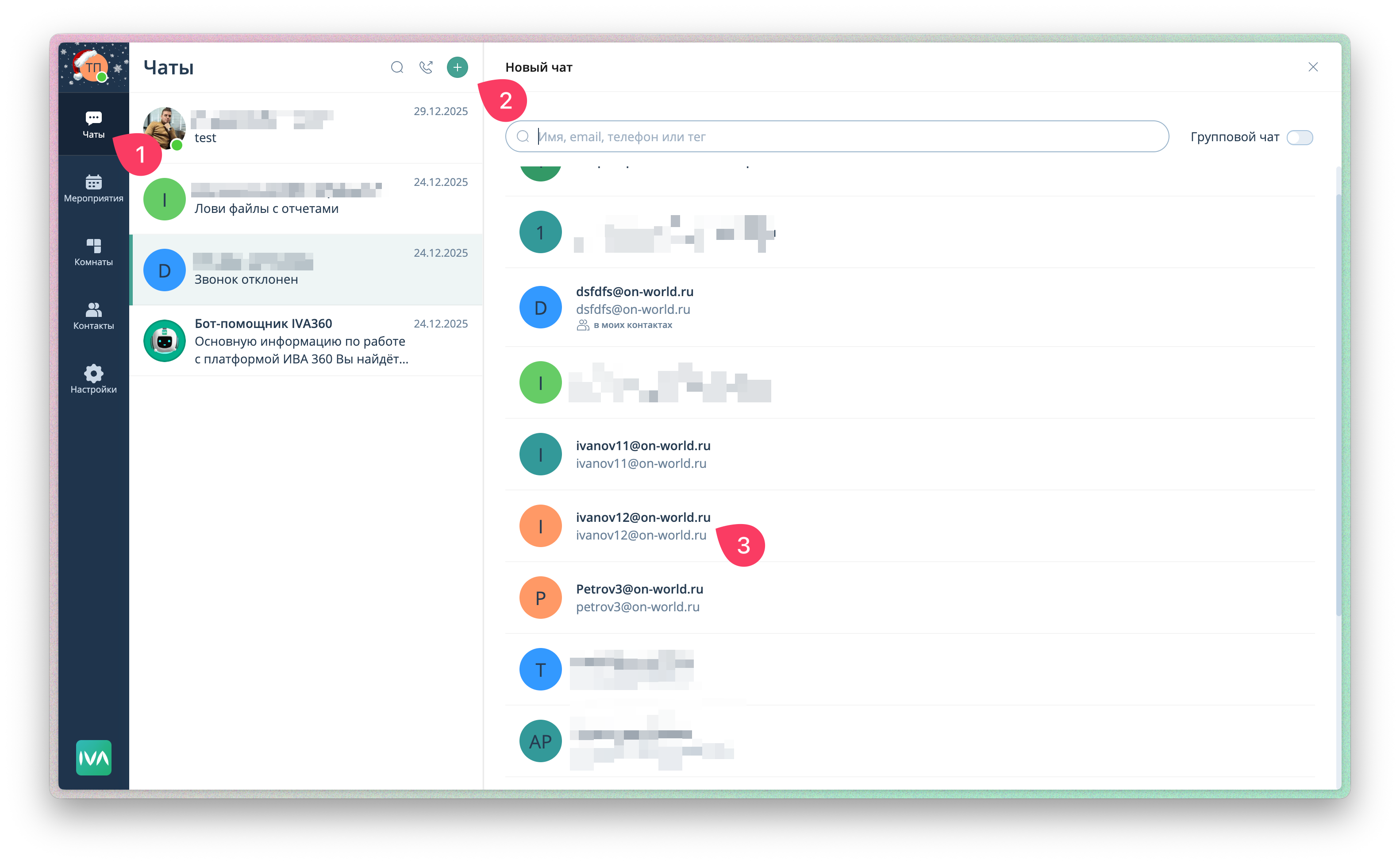
STEP 5: You enter the chat with the selected contact.