
User Directory Synchronization (LDAP / AD)
Overview
Directory synchronization allows for automatic creation and updating of user accounts in IVA360 based on existing corporate infrastructure (Active Directory, LDAP, and other compatible systems).
This reduces the workload on administrators, decreases the likelihood of errors, and provides a single source of truth about employees.
Supported Providers:
- Microsoft Active Directory — recommended for organizations using Windows Server;
- OpenLDAP — open implementation of LDAP widely used in Linux infrastructure;
- FreeIPA — solution for centralized identity management in Linux environments;
- Samba Active Directory — LDAP-compatible implementation of Active Directory;
- 389 Directory Server — enterprise LDAP server with open source code;
- Apache Directory Server — general-purpose LDAP server;
- Oracle Directory Server — Oracle enterprise LDAP server;
- Red Hat Directory Server — commercial version of 389 Directory Server;
- Keycloak (via LDAP Federation) — when using Keycloak as an LDAP proxy.
Any LDAP-compatible servers that adhere to the LDAP v3 standard are also supported.
Requirements and Preparation
Before starting the configuration, make sure that the network, access rights, and user directory meet the system requirements.
To successfully connect to LDAP, the following basic requirements must be met:
Network Access
- the IVA360 server must have network access to the LDAP server;
- the LDAP server must be reachable by DNS name or IP address;
- the connection should not be blocked by firewalls.
Connection Ports
- port 389 — for LDAP;
- port 636 — for secure LDAPS connection (recommended);
- if using a non-standard port, it must be explicitly specified in the connection URL.
LDAP Service Account
- there must be an account for connecting to LDAP;
- the account must have read permissions for users and groups;
- it is recommended to use a separate service account, not an administrator account;
- the account must have a valid password without restrictions on interactive login.
User Directory Structure
- users must be located in an accessible LDAP branch (
Base DN); - user accounts must have a unique identifier (e.g.
uid,mail, oruserPrincipalName); - user accounts must not be disabled or blocked.
Security Recommendations
- use LDAPS instead of LDAP;
- limit the service account access to only necessary permissions;
- use secure connection and an up-to-date server certificate.
Setting Up LDAP Synchronization
This section describes how to connect IVA 360 to your LDAP or Active Directory server for centralized authentication and automatic user account management.
After connecting to LDAP:
- users will be able to log in to IVA360 using corporate credentials;
- user accounts can be automatically created and synchronized;
- access management will be done through the corporate directory;
- passwords will not be stored in IVA 360.
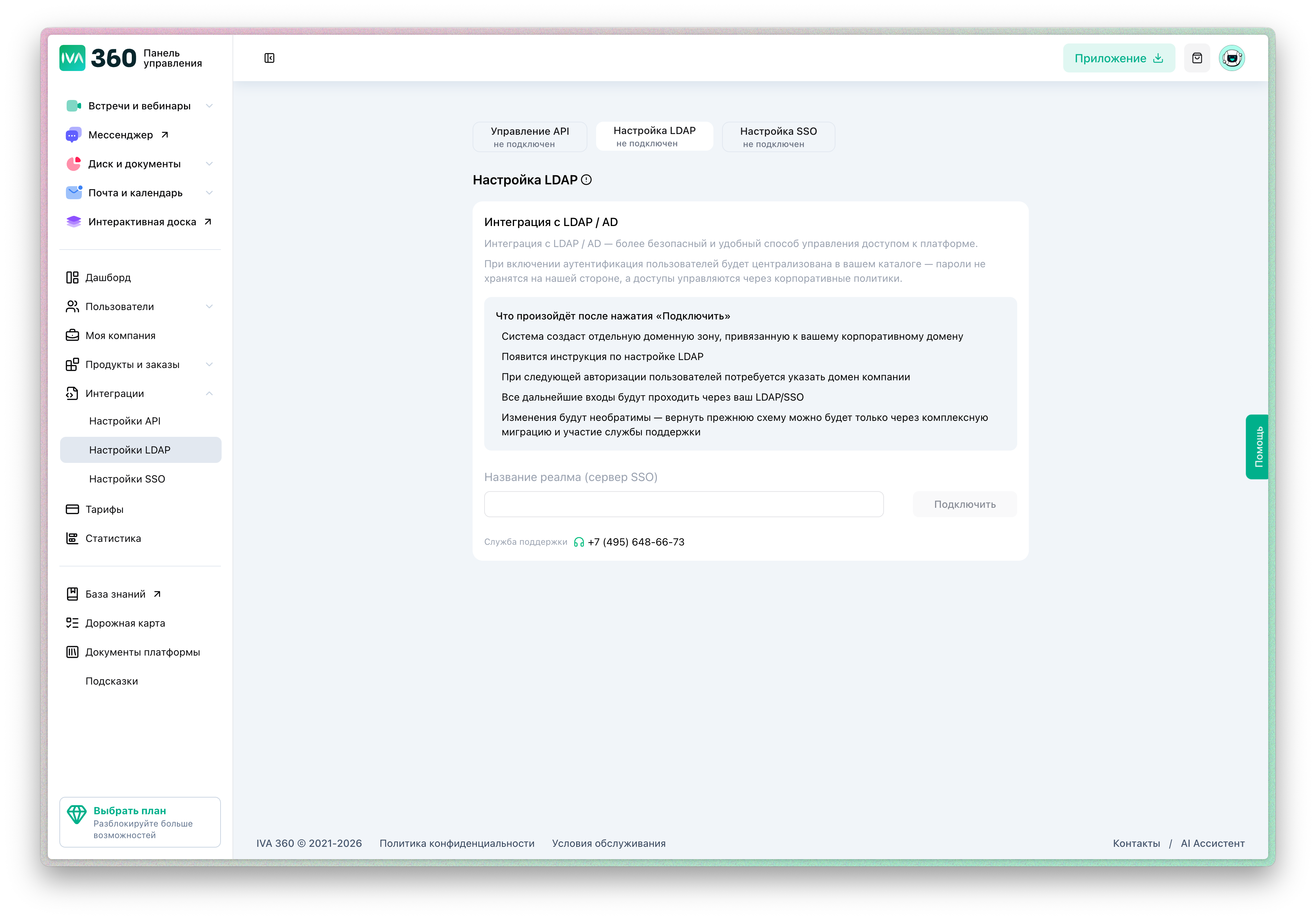
Step 1. Open LDAP Settings
- Log in to the IVA 360 admin panel.
- In the main menu, select "Integrations" → "LDAP Settings".
- Click on "Connect".
This will open the connection setup form.
Step 2. Specify LDAP Server Connection Parameters
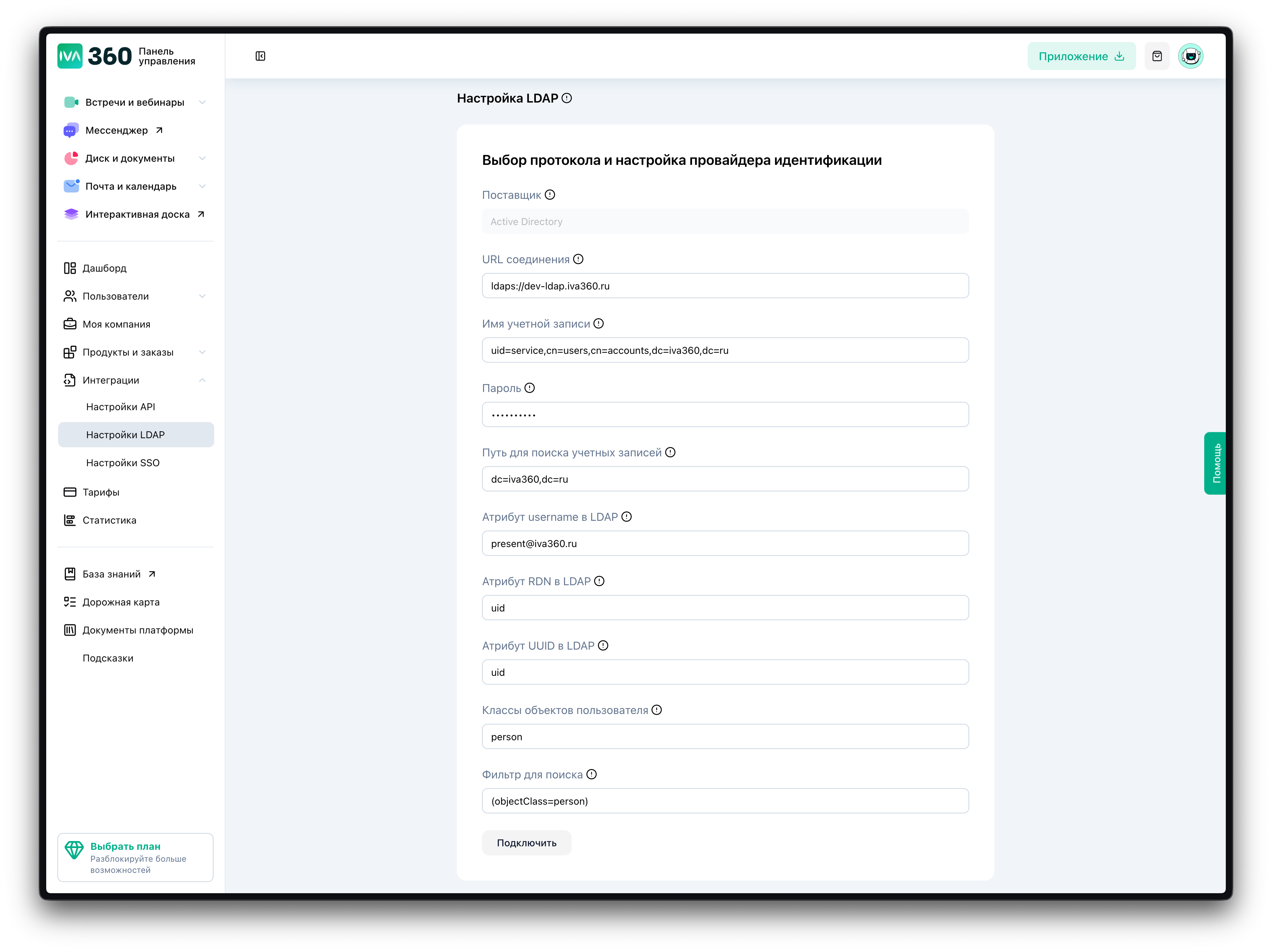
Fill in the following fields:
Provider Select the type of directory server. For example:
- Active Directory
- LDAP-compatible server
Connection URL Specify the LDAP server address in the format:
ldap://ldap.company.localor
ldaps://ldap.company.localUsing LDAPS is recommended for secure connection.
Account Name Specify the DN of the service account used for connection.
Example:
uid=service,cn=users,dc=company,dc=localPassword Enter the password of the service account.
Step 3. Specify User Search Parameters
Base DN for User Search Specify the base DN for user search.
Example:
dc=company,dc=localLDAP Username Attribute Attribute used as the user login.
Examples:
- userPrincipalName
- uid
RDN Attribute Attribute used to form the user DN.
Example:
uidUUID Attribute Unique user identifier.
Example:
objectGUIDStep 4. Specify Filter and Object Classes Parameters
User Object Classes Define which records are considered users.
Example:
personor
userSearch Filter Allows you to limit the list of synchronized users.
Example:
(objectClass=person)or
(&(objectClass=user)(objectCategory=person))Step 5. Complete the Connection
- Verify the correctness of the entered data.
- Click on "Connect".
If the parameters are correct:
- a connection to the LDAP server will be established;
- users will be able to log in using LDAP;
- IVA360 will start using LDAP for authentication.
Connection Verification
After successful connection, it is recommended to:
- log in with an LDAP user account;
- ensure that users are displayed in the system;
- check role assignments and products.
Security Recommendations
- use LDAPS instead of LDAP;
- create a separate service account for connection;
- limit the service account permissions to read-only;
- use filters to restrict access.
Possible Errors
Failed to connect to the server
Check the URL and LDAP server availability.
Authorization Error
Check the DN and password of the service account.
User Not Found
Check the Base DN and search filter.
Certificate Error (LDAPS)
Ensure that the server certificate is valid.