
IVA360 Disk and Document Features
Getting Started
IVA360 Disk allows you to store personal files, work with company documents, and use shared folders. The built-in online editor supports DOCX, XLSX, PPTX, and other office file formats that can be created and edited directly in the browser.
How to Open Disk
- Log in to IVA 360 with your account.
- In the side menu, select the "Disk and Documents" section.
- The workspace with files and folders will open.
Interface and Key Features
The Disk workspace consists of several sections:
"My Files" Section
Contains the user's personal files and folders. By default, only the owner has access to them.
"Shared with Me" Section
Displays files and folders that colleagues or administrators have granted you access to.
"Trash" Section
Allows you to view a list of deleted files with the option to restore or permanently delete them.

Managing Files and Folders
Files can be managed in several ways: through the context menu, action panel, or using drag & drop.
Uploading Files
- Open the desired folder.
- Click the "Upload" button or simply drag and drop files into the browser window.
- Wait for the upload to complete.

Creating Files and Folders
- Click the "Create" button.
- Choose the file type (document, spreadsheet, presentation) or create a folder.
- Specify the name and confirm the creation.

Key Actions
You can:
- Rename a file or folder.
- Move an object to another folder.
- Copy files.
- Move a file to the trash (delete).
- Restore a file from the trash.
- Permanently delete a file.

Multiple Actions
- Select multiple files using
Shift/Ctrl+Click. - Choose the desired action on the control panel.

Opening in Editor
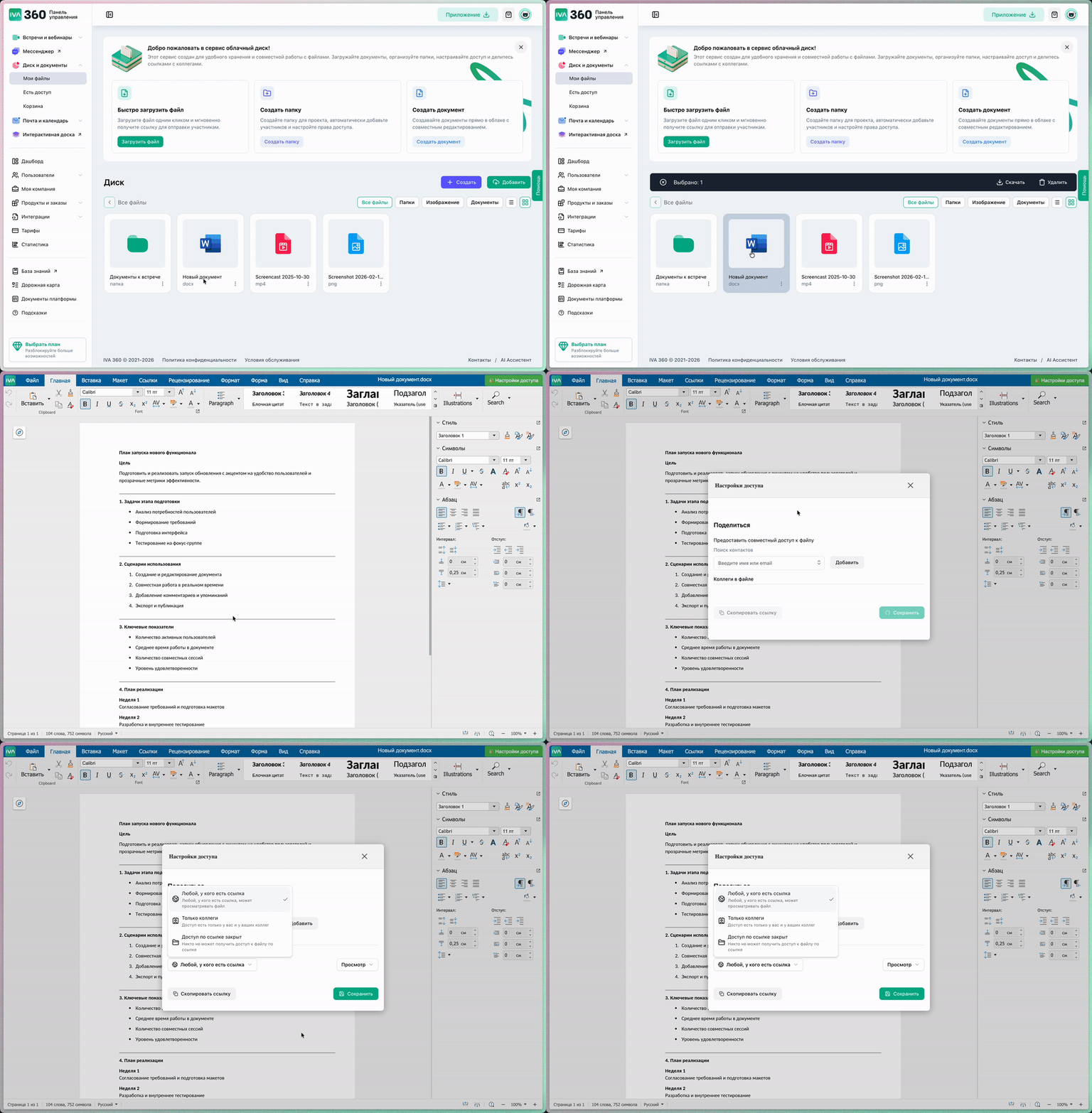
For supported formats (DOCX, XLSX, PPTX, etc.), simply double-click to open the file in the built-in editor.
Collaborative Access
You can grant access to a file or folder to colleagues or create a link for shared access.
Getting a Link
- Select a file or folder.
- Click "Share".
- Copy the generated link.

Setting Access Levels
Access can be configured as:
- View only.
- Edit.
| Link Type | Features |
|---|---|
| "For Everyone" Link | Allows anyone with the link to access it. |
| "For Colleagues" Link | Access via the link is only available to users in your organization. |
| Personal Access | Specify specific users for access. |
- Assign them the access level.
- Save the changes.
Working with a Link
Depending on the settings and file type, the recipient can:
- Download the file.
- Open the file in the online editor.
- Collaboratively edit the document with you.

Access Settings in Editor
During document editing, access rights can be changed and new participants can be invited directly from the editor interface.
