
Event Chats
Chats in events allow participants to exchange messages both in general dialogue and in private conversations. This makes interaction convenient and effective. Let's see how it works.
STEP 1: After entering the event, to open the chat, click on the chat button located in the bottom right corner of the screen.
STEP 2: To send a message, enter the text in the opened window and click the "Send" button.
STEP 3: If you need to delete your message, click on the three dots (⋮) next to your message and choose the action "Delete message" if you want to delete one, or "Delete all" if you want to delete all your messages. 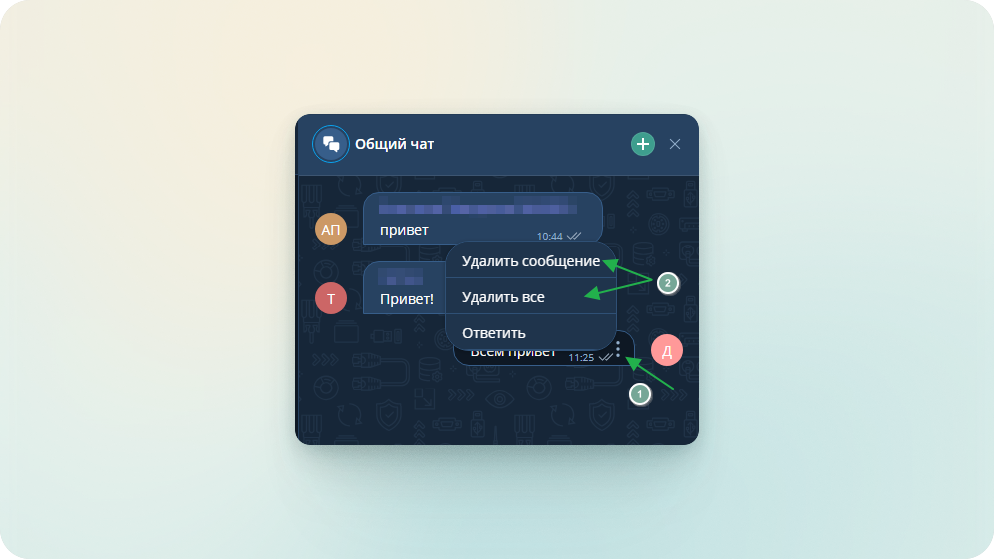
STEP 4: In the event, there is also the possibility to communicate not in the general chat, but in private messages. This can be done in two ways:
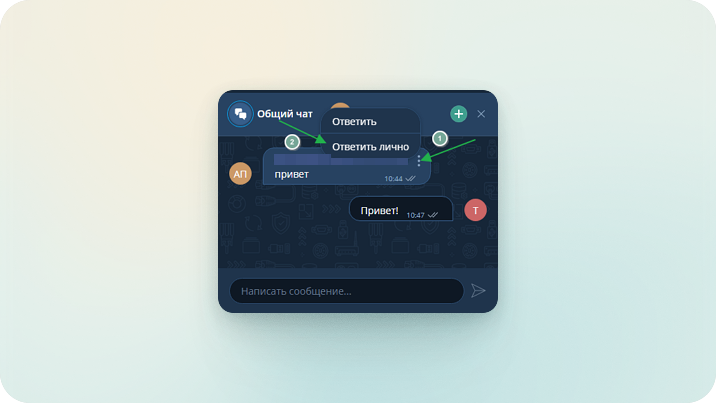
From the general chat: find the participant you need, click on the three dots next to their name and choose "Reply privately".
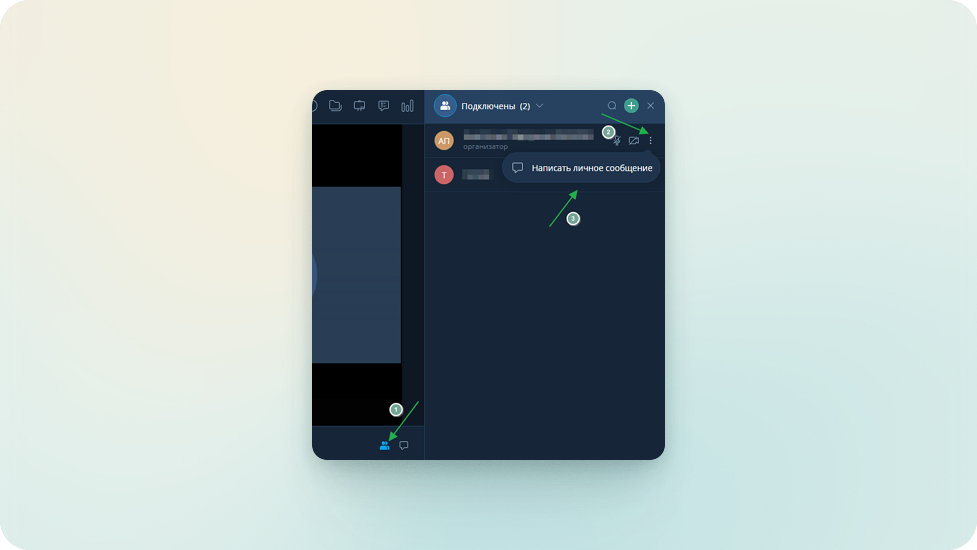
From the list of event participants: open the list of participants (button with two people next to the chat), select the participant, click on the three dots next to their name and choose "Write a private message".
STEP 5: You can switch between private conversations and the general chat in the event in the dialogue window by clicking on the appropriate dialogue icon. 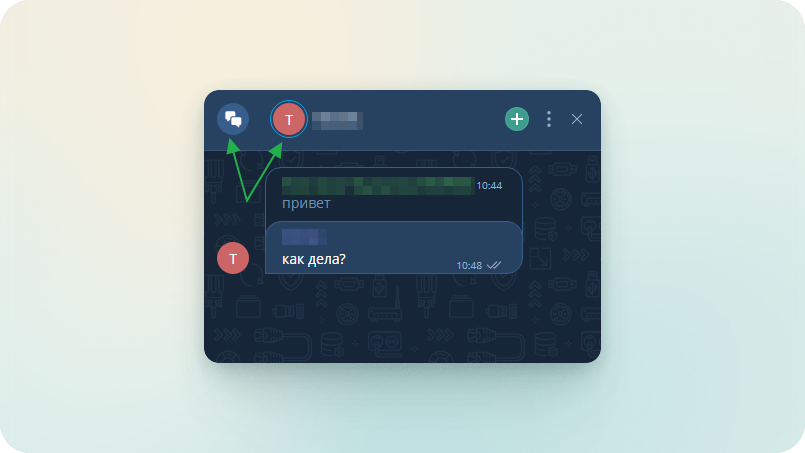
Important
The event chat exists until the event is completed, after completion, the chat history is not saved. In the event chat, you can only send messages. Documents, as well as any media files, cannot be sent, even from the clipboard.