
Remote desktop management
About remote desktop management
The IVA 360 platform allows managing a participant's remote desktop if they have enabled this feature at the start of the demonstration. This setting is only available if it was activated by the Organizer / Moderator when creating the event or in the event settings. With this setting activated, regular event participants can change their own settings during the demonstration of additional content.
⚠️
- Remote desktop management is not available for mobile applications, WEB, or when the demonstration owner is using the macOS Application version.
- Remote desktop management supports hotkeys (keyboard, mouse).
- The current version of the Application does not support the Russian layout. To change the input language, switch the keyboard layout on the demonstration owner's PC (for example, from the OS taskbar).
Changing the layout is available to both the demonstration owner and the participant managing the desktop.
Request for management
If the demonstration owner starts screen sharing with remote desktop management enabled, participants in the event workspace will see the Request control of the demonstration button.
Regular participants must have permission for remote desktop management.
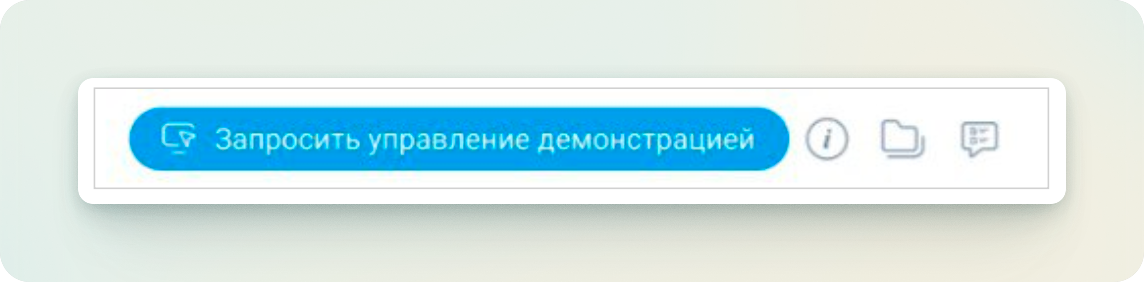
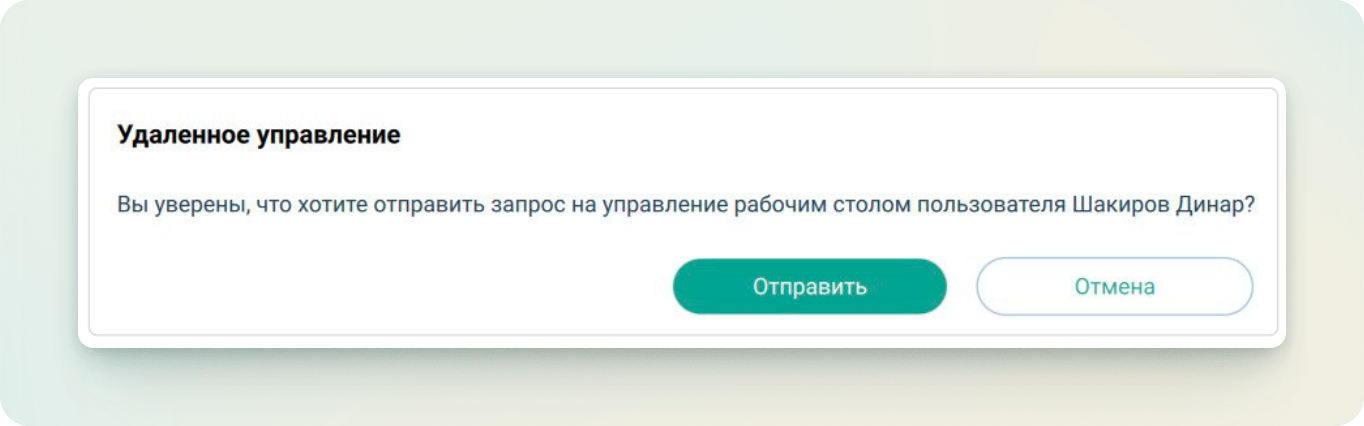
To send a request for remote management to the demonstration owner, you need to:
Click the Request control of the demonstration button → Remote management → Send
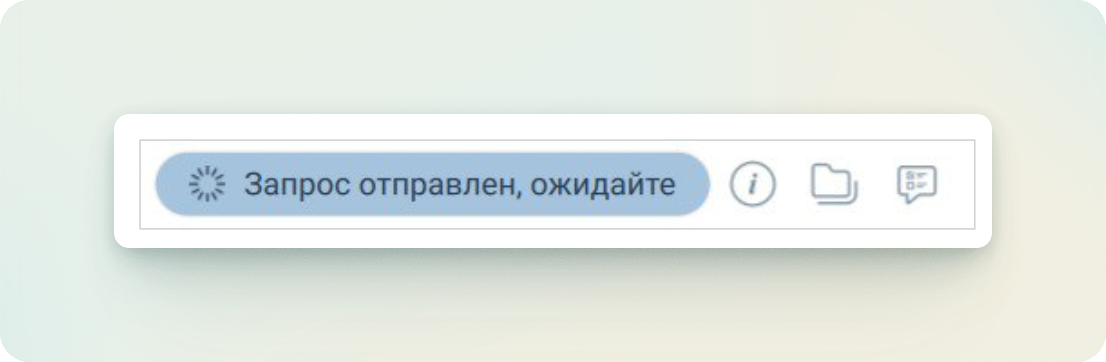
For the participant who sent the request for remote management, a notification of the request being sent will appear in the event workspace.
Please note
System response time: 30 seconds. If a response to the request is not received within the set time, the participant who sent the request will see a notification Response time expired and the request will be automatically canceled.
Management of management requests
When a request for remote access is received, the demonstration owner receives a notification with the option to instantly allow / deny remote management. The demonstration owner can also respond to the remote access request from the broadcast area: Broadcast area → Remote desktop access:
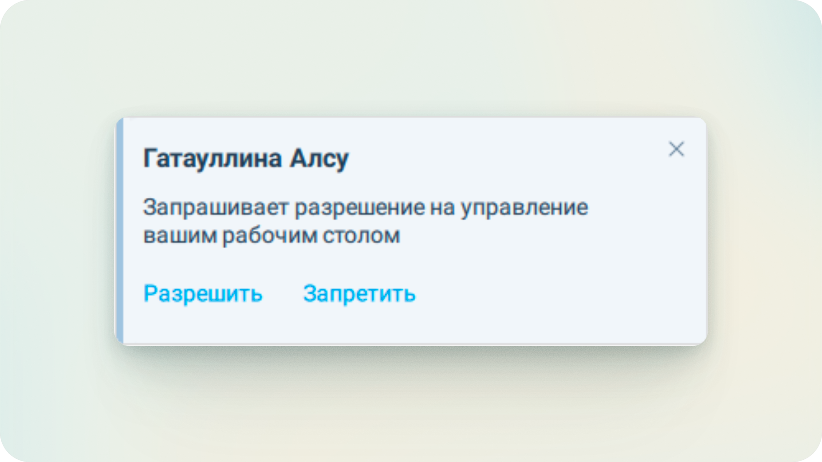
⚠️
By clicking the Deny link, you can deny remote access for all participants.
Remote desktop management request: allow / deny requests immediately for all participants
• Allow all: Allow → Allow all access to your desktop? → Allow
• Deny all: Change settings / Deny → Deny all access to your desktop? →
⚠️
When choosing Change settings, the option to change the state of the Remote desktop management setting is only available to the Organizer / Moderator of the event.
Select user: allow / deny request personally for the user
- Allow → Allow access to your desktop? → Allow
- Deny → Deny access to your desktop? → Deny
If the demonstration owner allows remote management, the participant who sent the request will see a notification of the possibility of remote management, and the demonstration owner will see an icon and notification in the Remote desktop access window.
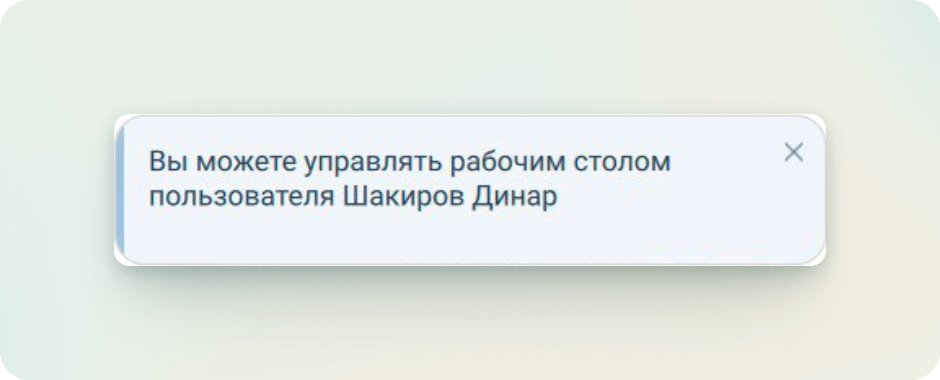
If the demonstration owner denies remote management, the participant will see a notification of the request being rejected.
Canceling access to management
To cancel remote access, you need to:
- for event participants:
- Click the Cancel control of the demonstration button
⚠️
Canceling remote management by the event participant occurs without a request and notification to the demonstration owner
- Click the Cancel control of the demonstration button
- for the demonstration owner:
- to cancel remote access for all participants: Click the Deny link / Reject all requests (in the Desktop management access field)
- to cancel remote access personally for a participant: Deny (in the participant's name field)
Remote access is automatically terminated in the following cases:
- when the demonstration ends
- when leaving the event
- when losing internet connection
- when changing event settings