
Frequently Asked Questions
Table of Contents
Terms and Definitions
Event - a video/audio communication session on the Platform, (one-time, periodic, or permanent). Depending on the template settings, events are divided into the following formats: conference, webinar, lecture, and selector
Video Conference - an event where two or more remote subscribers interact, enabling real-time audio and video information exchange, considering the transmission of control data
Meeting - All participants see and hear each other
Webinar - Listeners only see the speaker and moderator and can ask questions
Webinar Recording - Listeners only see the speaker and moderator and can ask questions
Meeting Recording HD - Listeners only see the speaker and moderator and can ask questions
Selector HD - Regular participants only see and hear the speakers and moderators
Lecture - Regular participants only see the speakers and moderators but hear everyone
Speaker - a user who speaks and transmits specific media stream(s) to event participants, similar to speaking in real-time. The speaker does not have access to event settings and cannot assign roles to other participants
Moderator - a user who directly manages the event. The moderator controls the overall quality of the transmission for all participants, roles, and available functions for participants
Roles - a way of grouping users and event participants based on the set of rights they have on the Platform or in the event
Personal Account (LK) - user's personal account
How to Contact Support
You can contact technical support at the following email address:
e-mail: support@vkurse.ru phone: +7 499 288 11 23
Necessary Data to Launch the Product on Devices
For a registered user, the following data is required.
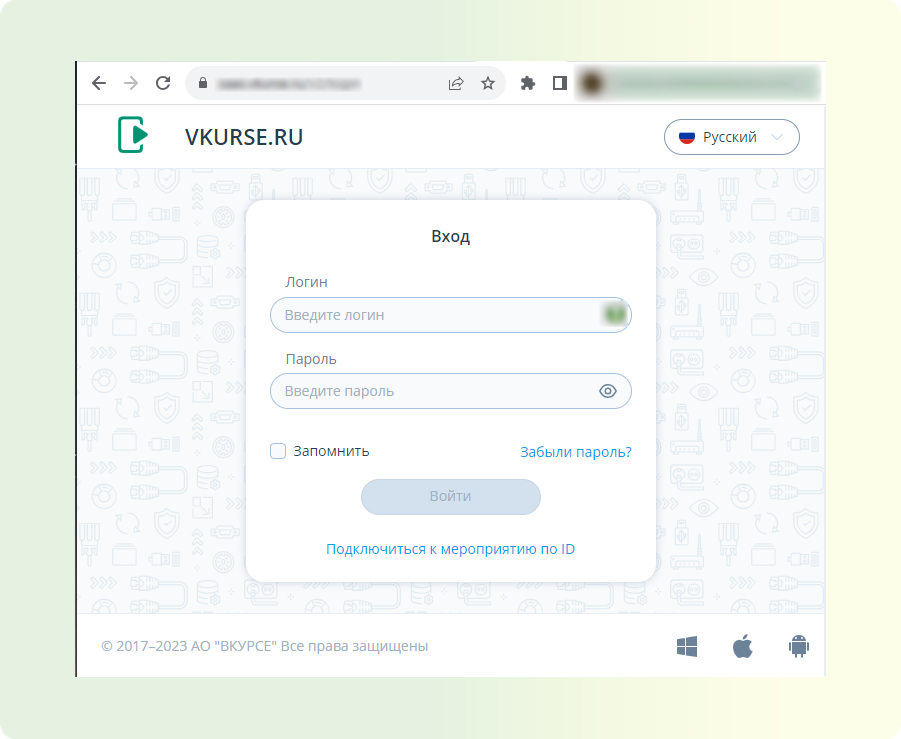
For connection via browser:
- Link to the registration page
- Login
- Password
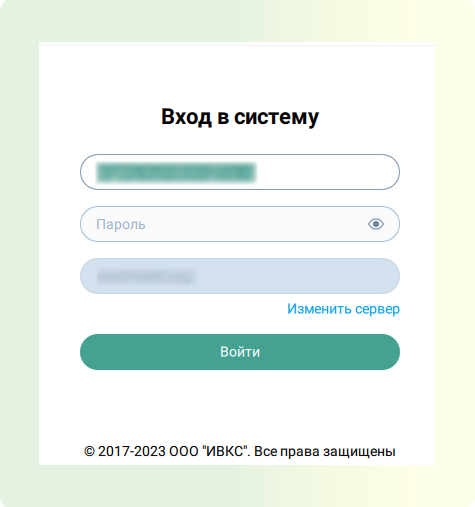
For connection via Desktop (PC Application):
- Login
- Password
- Server address
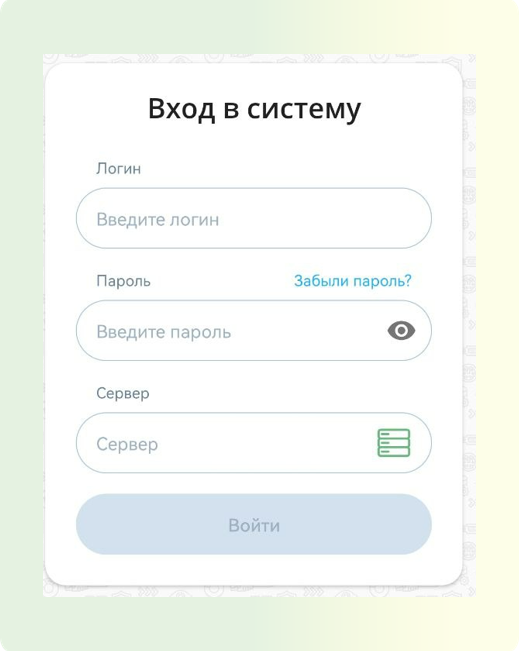
For connection via mobile client:
- Login
- Password
- Server address
Roles of Event Participants
Organizer - a registered user who created the event with the maximum set of rights available for the event. They perform planning, moderation, administrative functions, including event deletion.
Moderator - a user who manages the event. The moderator controls the quality of the transmission for all participants, roles, and access rights for other participants.
Speaker - a user who speaks and transmits content to event participants. They do not have access to event settings and cannot assign roles to other participants.
Adding Files to an Event (Formats)
- While in the event, click the "Files" button in the top right corner in the form of a folder
- In the opened window, click the "Upload" button and select the necessary materials for uploading and demonstration.
Uploaded files can be of various formats:
- office text files:
.pdf,.doc,.docx,.txt,.rtf,.odt,.ppt,.pptx,.pot,.pps,.xls,.xlsx,.xlt, - with images: corresponding formats supported by the browser (
.jpeg,.gif,.png,.bmp, etc.), - with videos: corresponding formats supported by the browser (
.mp4,.flac, etc.)
The most common format is pdf.
Why Camera and Sound May Not Work?
If the Kaspersky or Dr.Web antivirus is installed on the PC, input and output sound and video devices may be unavailable. Solution: Add Google Chrome browser or the specific VKS platform site to the trusted settings of the Antivirus.
- If other VKS applications (MTS Link, Zoom, or others) are installed on the PC, input and output sound and video devices may be unavailable when entering IVA 360, as they are pulled into previously used systems by default.
Solution
Completely close other VKS applications in the operating system, reload the event page
Camera and Microphone Not Working in Safari Browser
Check Safari permissions:
- Open Safari and go to the video conference site.
- Click Safari → Preferences for this website.
- Make sure the Camera is set to Allow.
Check camera settings:
- Go to System Preferences → Security & Privacy → Camera.
- Make sure Safari is allowed to use the camera.
Disable tracking prevention:
- In Safari Settings, select Privacy.
- Disable Prevent Cross-Site Tracking on all sites.
Disable extensions:
- In Safari Settings, go to Extensions.
- Disable all extensions and check the camera.
Update Safari:
- Check for updates for Safari in the App Store.
Close other applications using the camera:
- Make sure other programs like FaceTime or Zoom are not using the camera.
Clear cache:
- In Safari Settings, select Privacy → Manage Website Data.
- Click Remove All.
Try another browser. If the problem persists, try Google Chrome or Firefox.
Color Artifacts on Video in Yandex Browser
- Check the version of the Yandex Browser. Make sure you have the latest version of the Yandex Browser installed. If not, update the browser.
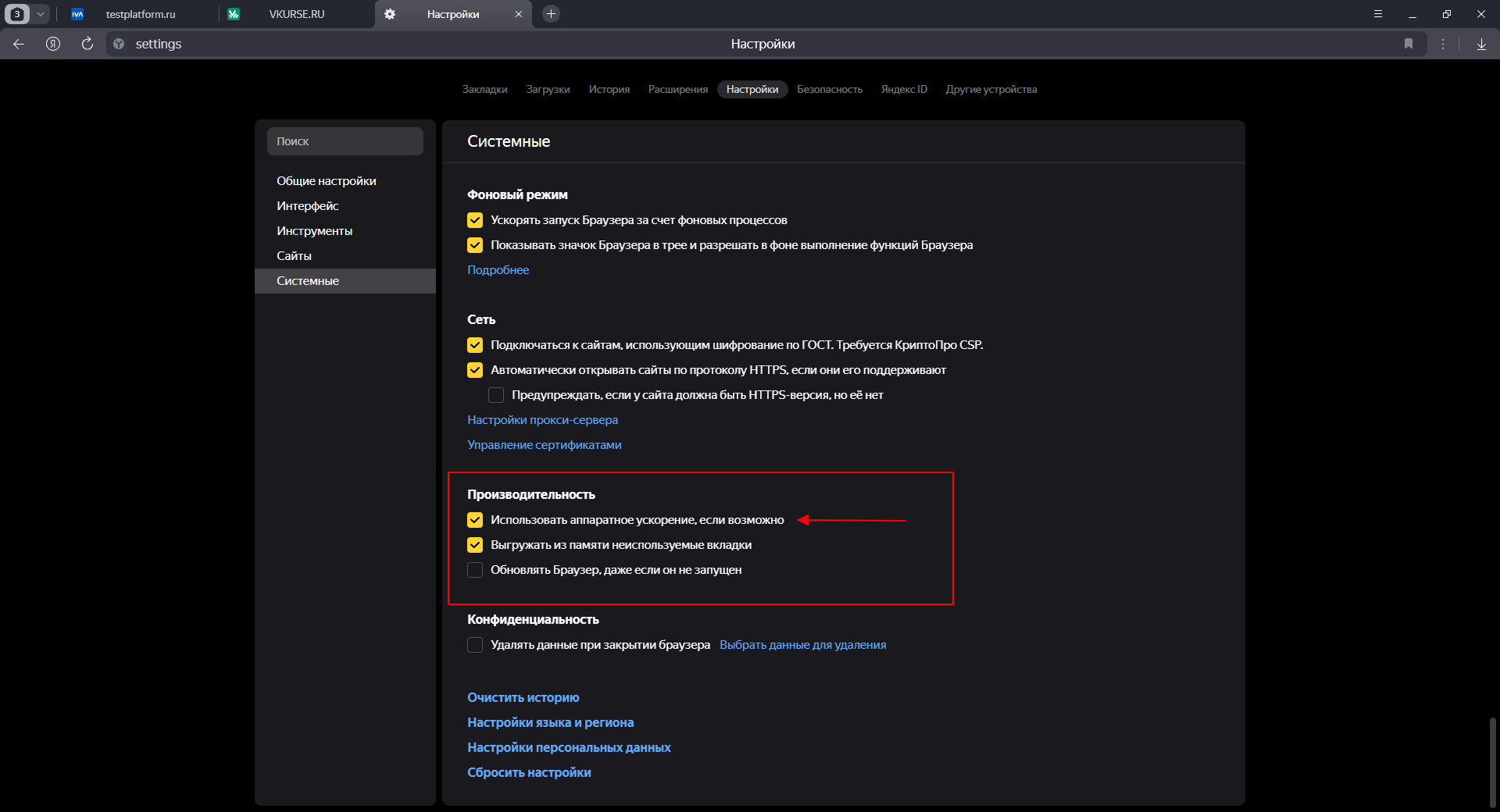
- Check hardware acceleration settings:
- Open the Yandex Browser.
- Go to Settings → System → Performance.
- Find the option "Use hardware acceleration if possible."
- Turn off hardware acceleration. If this option is enabled, disable it. This may help eliminate video stream issues.
- Refresh the event page. After turning off hardware acceleration, be sure to refresh the page for the changes to take effect."
Camera and Microphone Not Working in IVA Connect Android
If you are experiencing difficulties using the camera or microphone in the IVA Connect application, follow these steps:
- Close all active applications. This will free up device resources, which is important for the correct operation of IVA Connect.
- Check the connection to the event. Make sure the application is active, and you have joined the correct session.
- Adjust application permissions: Go to Android Settings → Apps → IVA Connect → About the app. Make sure the following permissions are enabled:
- Camera - for video.
- Microphone - for sound transmission.
- Phone - for communication.
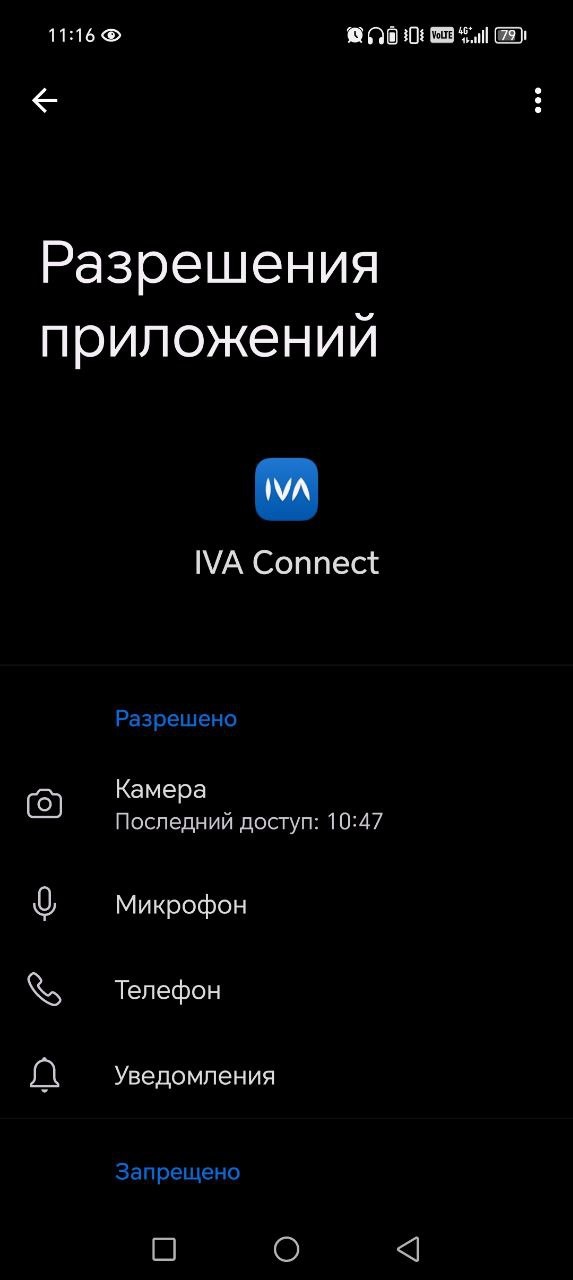
- Restart the application: Close IVA Connect by unloading it from background processes, and reopen it.
- Uninstall and reinstall the application (if necessary). If the problem persists, uninstall IVA Connect, reinstall it, enter the provided data (server address, login, password), and reconfigure the permissions.
These actions will help restore the correct operation of the camera and microphone in the application.
Notifications Not Coming in IVA Connect Android
If notifications from IVA Connect have stopped working, follow these steps:
Check notification settings. Go to Android Settings → Apps → IVA Connect → Notifications.
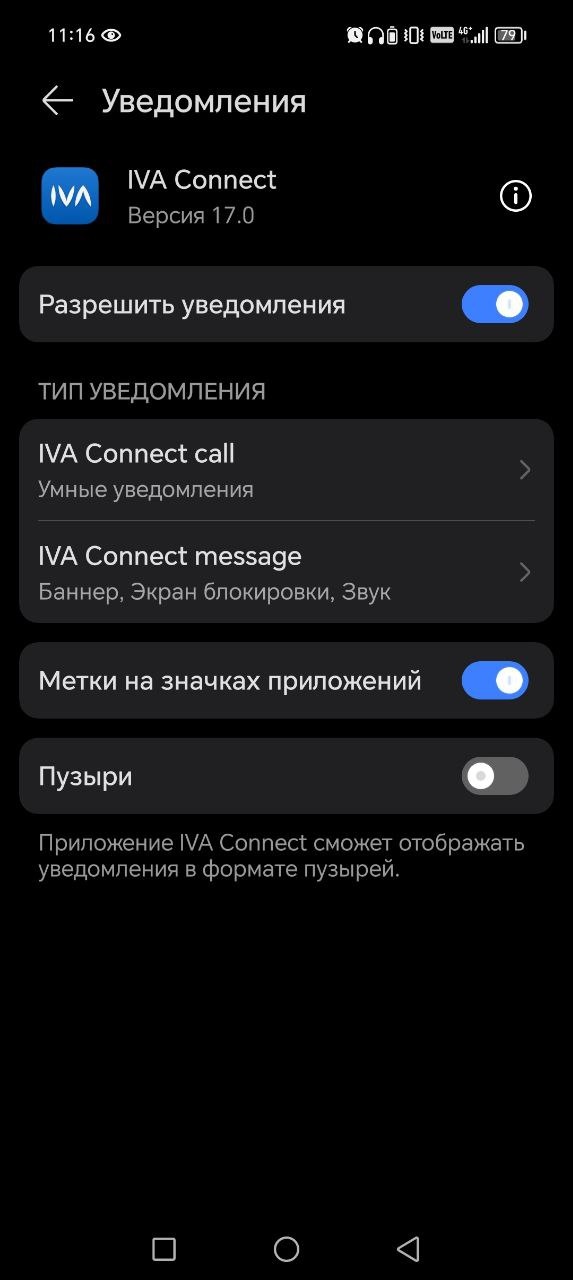
Make sure the notification option is enabled.
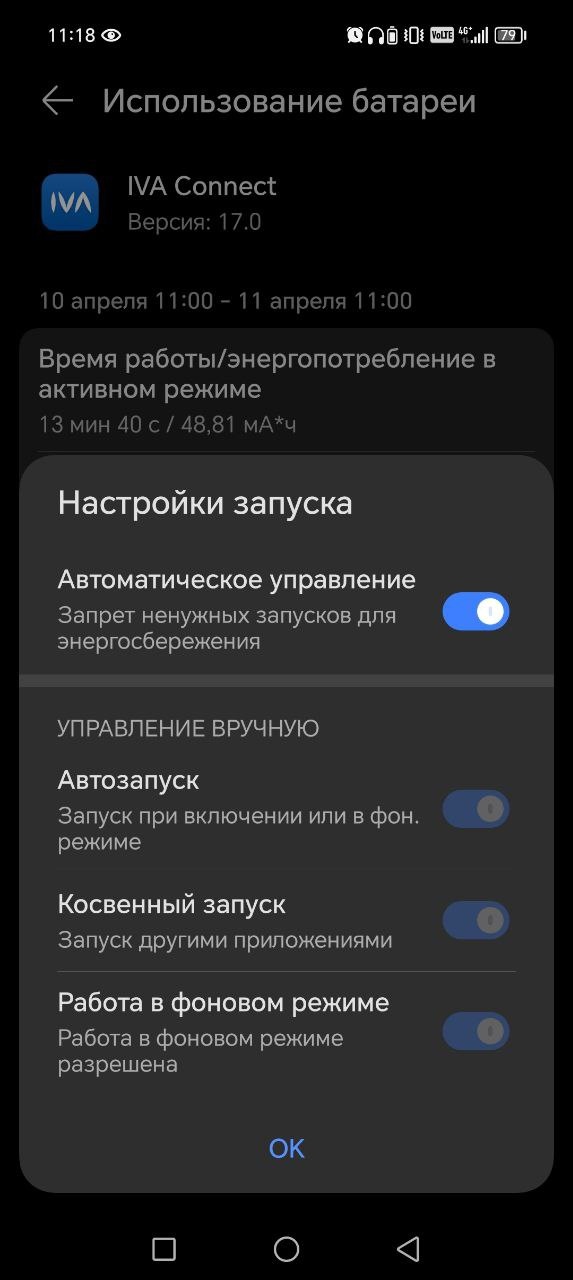
Adjust power consumption. In the Battery Usage section, enable the application's auto-start. This ensures that IVA Connect continues to run in the background, even if the system closes resource-intensive processes.
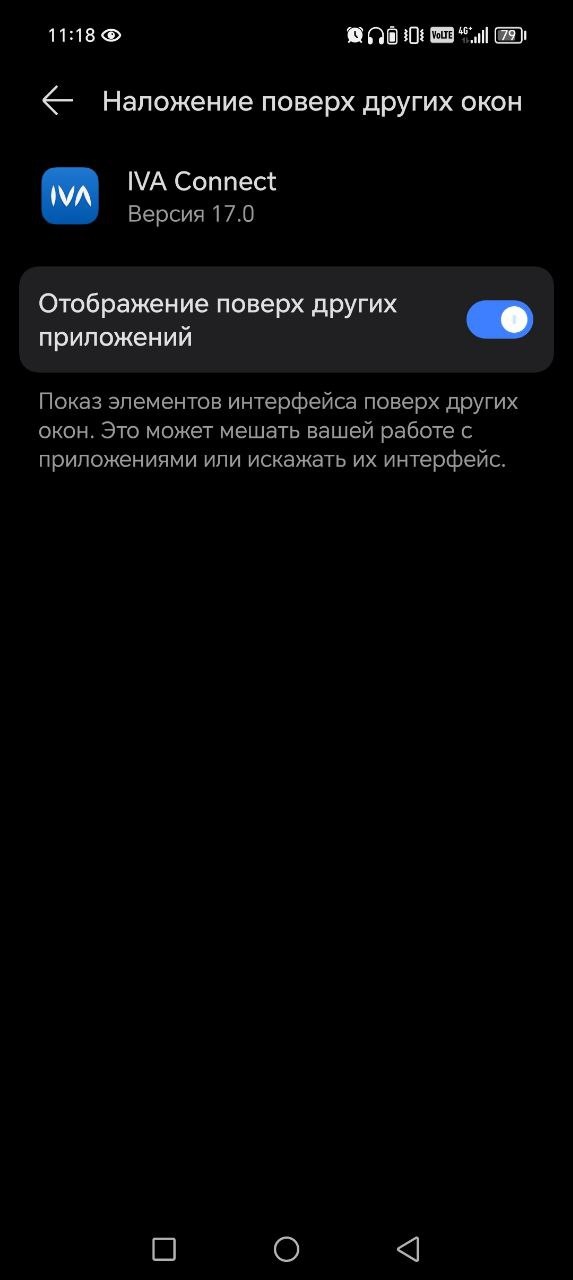
Additional settings. Enable the Overlay Other Windows feature (in the additional settings section). This is necessary for displaying pop-up notifications and video calls.
Restart the application. Close and reopen IVA Connect to apply the changes.
Reinstall the application (if the problem persists). If the issue remains unresolved, uninstall IVA Connect, reinstall it, and configure all settings, including permissions. By following these steps, you will restore the notification functionality and receive important messages in a timely manner.
Unable to Connect to an Event on Apple iPhone
If you are having trouble accessing an event on devices with iOS below version 16, follow these steps to resolve it on your own.
- Update iOS to the latest version:
- Open Settings → General → Software Update.
- If an update is available, install the latest version of iOS. This update will update Safari, resolving the issue.
- Use the Chrome browser:
- If you cannot update iOS, install Chrome:
- Open the App Store, find and install the latest version of the Chrome browser.
- Open the event link through Chrome.
- The link should open correctly, and you will be able to connect to the event.
Important:
- Safari cannot be updated separately from the system update, as the built-in browser is updated only with a new iOS version.
- If updating iOS is not possible, using Chrome will solve the problem.
Folders Not Opening in Events in IVA Connect
If you are having trouble opening folders in the "Files" section in the IVA Connect Desktop application when connecting to an event, follow these steps:
- Use the Web or Mobile version:
- If you cannot access folders in the IVA Connect Desktop application, you can enter the event through the Web version or Mobile version of the application.
- In both cases, the functionality with access to folders will work correctly.
- Note:
- This is a temporary workaround. Developers are working on fixing this issue in future application updates.
Can a Participant's Microphone Be Turned Off?
The moderator has the ability to turn on and off the microphones and cameras of participants. When using the "soft mute" function, after disabling a participant's equipment, they can independently turn it back on. However, when the moderator decides to turn on a participant's camera or microphone, the participant will receive a notification of the moderator's intention.
How to Avoid Notifications: for the moderator to be able to control the microphones and cameras of participants without notifications, the participant must grant permission to control the devices in the "Media Transmission Control" section. To do this, both switches - for the camera and microphone - must be turned on. After this, the moderator can turn on and off participants' equipment without the need for confirmation from them.
How to Get a Recording of a Past Event?
To get a recording of a past event, follow these steps:
- After the event ends, all participants who provided their email will receive an email with a link to view the recording and access the event files.
- Open the email and follow the link to view the materials.
- On the viewing page, select the "View Materials" option and download the necessary file. These files and recordings will be available to all participants, regardless of the connection source.
Changing a User's Password
If you have not logged into the platform within 2-3 days of receiving the activation email, the password "expires."
To regain access, follow these steps:
- On the login page, select the "Forgot Password?" option and follow the instructions to reset your password.
- Then create a new password, ensuring that it meets the following requirements:
- Minimum of 8 characters.
- Contains at least one uppercase letter.
- Contains at least one number.
- Does not use simple sequences (e.g.,
123456,qwerty).
After resetting your password, you will be able to log back into the platform and continue your work.
Message "Out of Available Spots"
If you receive the message "Out of Available Spots," contact the event organizer to clarify the situation. The number of participants is limited according to the subscription terms, which can be checked in the administration panel.
Request to Restore Chats on the Platform
IVA 360 does not provide the ability to restore chats on the VKS platform, as such a feature is not available.
Confirmation Window Appears in the Web Version of the Application
If after refreshing the page on the platform, a notification "Confirm Action" appears, this is related to browser requirements for playing audio. 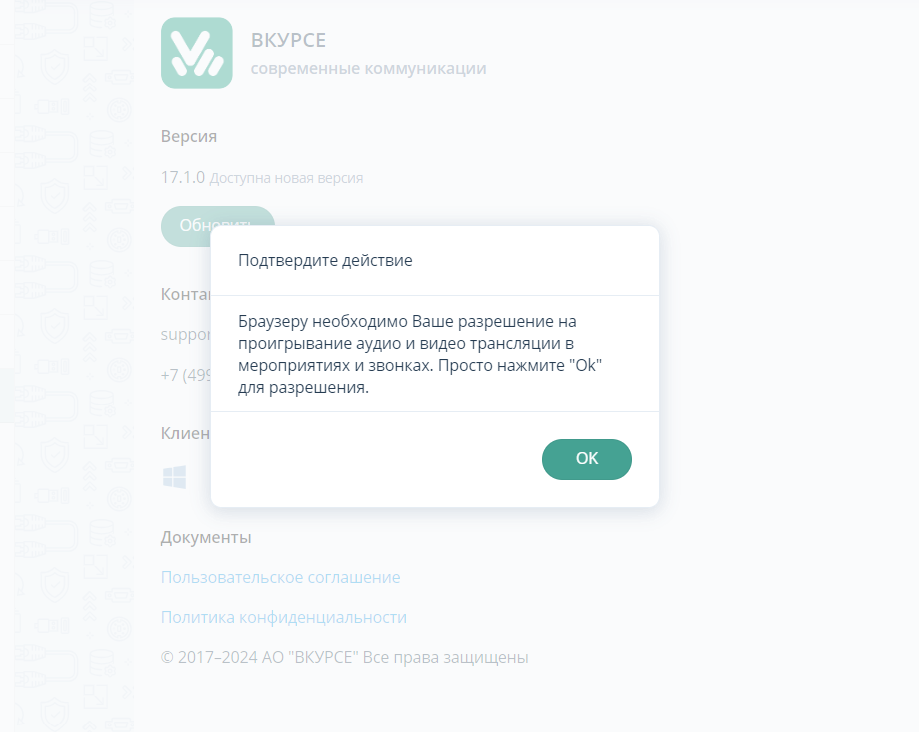 What to do: simply confirm the action so that the page can safely play sound. This requirement is introduced to improve audio functionality and helps the browser consider the page trusted.
Deleting an Event through Outlook
If you have deleted an event in Outlook, but it continues to appear on the IVA 360 platform, delete it through your IVA 360 personal account.
How to delete an event in IVA 360:
- Go to your IVA 360 personal account.
- Find the event you want to delete.
- Right-click on the event.
- In the context menu that appears, select the "Delete" option.
Low Transmission Quality
If the transmission quality has deteriorated, follow these steps to improve it:
- Check the connection statistics. To display video in maximum quality, an internet speed of
3 Mbpsis required. If you have a slow connection, lower the transmission quality in the equipment settings to reduce network load. - Check system parameters. Open Task Manager and see how much free memory is available. If there is little free memory, close active applications and browser tabs that may be consuming resources.
- Restart the device. Sometimes a simple device restart helps free up resources and improve the connection quality.
By applying these recommendations, you can increase the stability and quality of the transmission.
It is also worth noting that users with slow internet may see a decrease in quality only on their screen, without affecting the quality for other participants. "